


Method 1. Integration through our expansion by a MEDFLEX specialist 
For integration, you must provide remote access to the computer where the MIS server is located. At the same time:
- 1C should be running in Configurator mode (as an administrator).
- The clinic must have previously installed the web server extension module from the 1C distribution.:Company.
- 1C and computer accounts must have administrator rights.
It is necessary for us to do the following:
- We have added our extension to the 1C configuration.
- We have published an HTTP service.
- We have added a 1C account.
- WireGuard has been installed.
Installing the Web Server Extension module
You may need Administrator rights to install the web extension module.
1. On the database server, open the control panel and go to the section «Программы - Программы и компоненты».
2. For Windows XP, open «Панель управления»it and select «Установка и удаление программ».
3. Select your 1C version from the list of programs:Company and click the button «Изменить».

4. The version of the 1C platform used:You can find out the company by clicking on the icon «i»(program information) in the 1C application window.

5. In the window that appears, click «Далее».
6. Select the installation «Модули расширения веб-сервера»as shown in the screenshot:
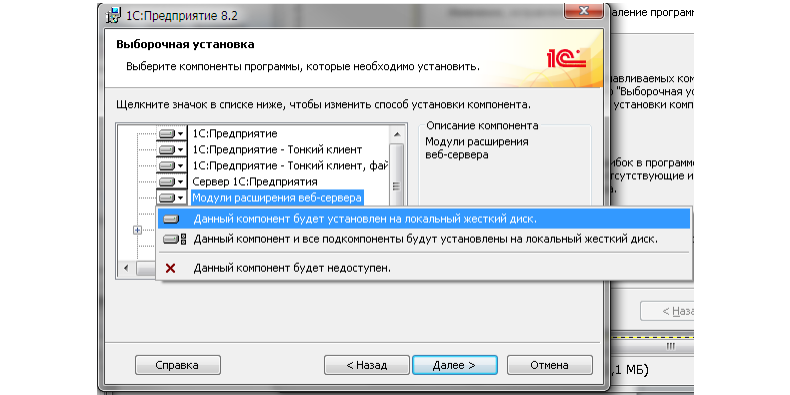
7. Click the button «Далее»and follow the instructions to complete the installation.
If your computer does not have the distribution of the specified version of the platform«1С:Предприятие 8», you can download it from the 1C website. https://users.v8.1c.ru/distribution /.
Detailed information on installing and configuring platform components «1С: Предприятие»is available in chapter 2 of the Administrator's guide«1С:Предприятие».
Method 2. Integration through the MIS developer
1. Request a login and password for uploading from the developers of Medflex by mail it@medrocket.ru . In the letter, specify the INN and the name of the clinic.
2. Contact your MIS technical support to receive:
URL is the path that we will use to make an online entry request.
API KEY — for authorization on the API side.
The ID of the connected clinic.
3. Send the data received from the MIS specialists to the post office it@medrocket.ru .
Self-integration through our expansion by a clinic specialist
Before setting up, request the current Medflex extension for 1C and the WireGuard configuration from our developers by mail it@medrocket.ru . In the letter, specify the INN and the name of the clinic.
Step 1. Checking the platform version
The minimum version of the platform is 8.3.10. The extension will not be installed on earlier versions of the platform.
The minimum configuration version that the extension was tested on is 1.0.19.16.
If you are working with an earlier version of the platform or configuration and cannot update them, contact your personal MedRoket manager.
How to check the version
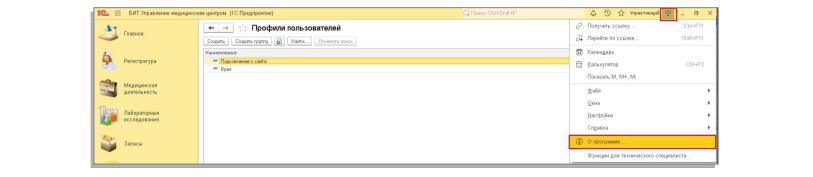
- Select the menu item in the upper-right corner«Сервис и настройки».
- Open«О программе».

Step 2. Install the MedFlexAppointment_MedAngel.cfe extension
The extension implements an http service for receiving schedule data and direct recording on the 1C side.
To install the extension, you must have rights to the functions of a technical specialist (roles, Full rights/ Mode«Все функции») to access the configurator.
- Open the section«Конфигурация».
- Choose«Расширения конфигурации».

3. Add an empty extension.
4. After that, download the Medflex extension to it.
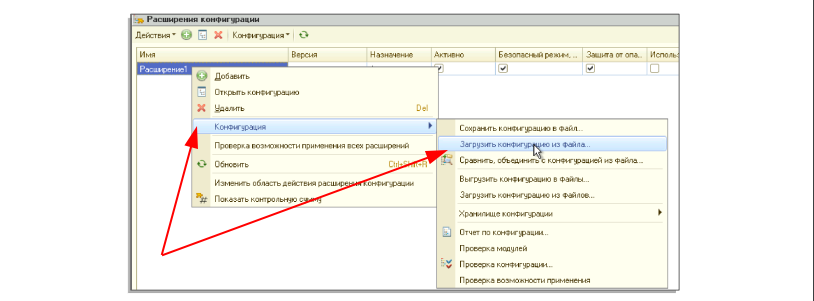
5. Answer all subsequent questions in the affirmative.
6. After downloading, uncheck «Безопасный режим»and «Защита от опасных действий».

Step 3. Adding a 1C user for direct recording
To connect to the http service, you must have a corresponding 1C user.
Below is an example of creating a user in the mode «Предприятие».
- Go to the menu«Настройки».
- Choose«Пользователи».
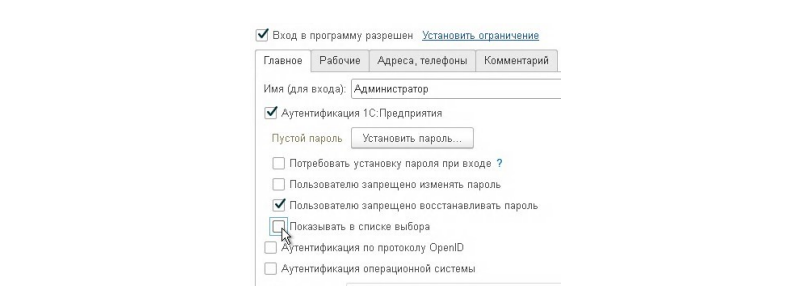
- In the window that opens, create a new user or select an existing user and assign «Полные права». This will eliminate access errors after the update or appointment errors.

4. Remove the mark«Показывать в списке выбора».
Step 4. Publishing the web service
The added web service must be published on the Apache web server.
To do this, follow the instructions below:
You can use the IIS web server instead of Apache.
Important! In 1C, the publication must be performed with the enabled flag«Публиковать http-сервисы расширений по умолчанию».
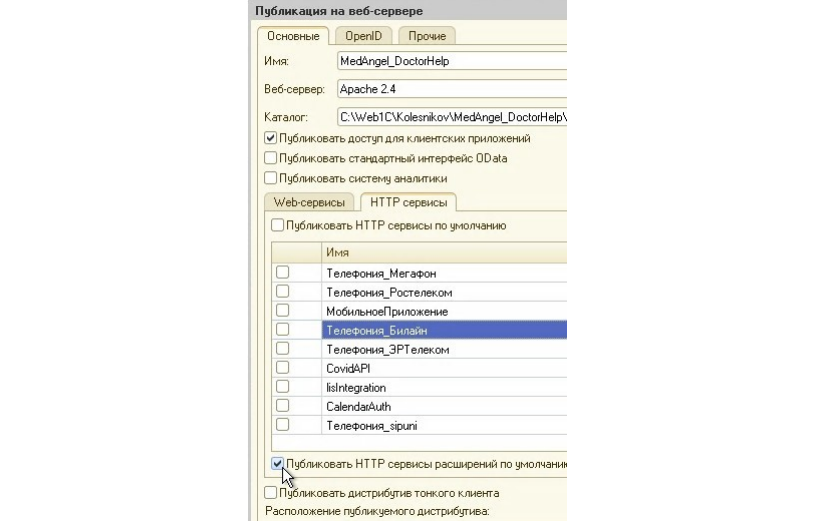
The name of the published database can be arbitrary in Latin.
After publishing, make sure that the users running the web server have rights to the 1C database folder.:
- For the Apache web server, the user is a LOCAL SERVICE.
- For the IIS web server, the user is IUSR.
Step 5. Installing WireGuard
The connection is made via a VPN connection. Request the VPN configuration by mail from the Medflex developers. it@medrocket.ru . In the letter, specify the INN and the name of the clinic.
- Download and install WireGuard.
- Run the program.
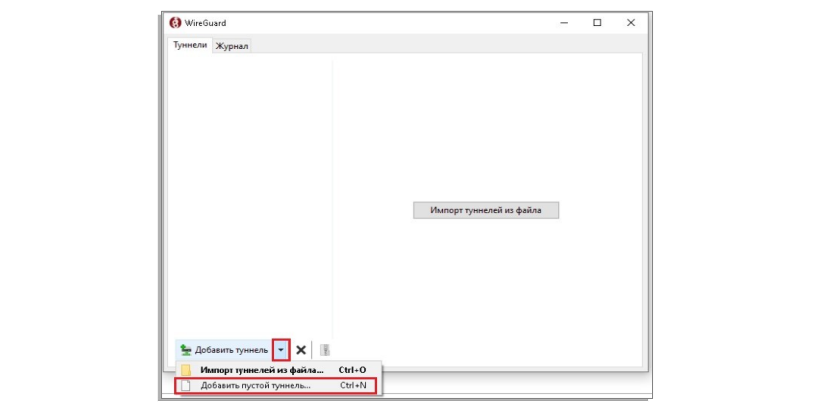
- In the lower-left corner, click on the arrow and select «Добавить пустой туннель».
4. Replace the text in the window with the data you received from Medflex. The name of the PD. It should look like the picture below.
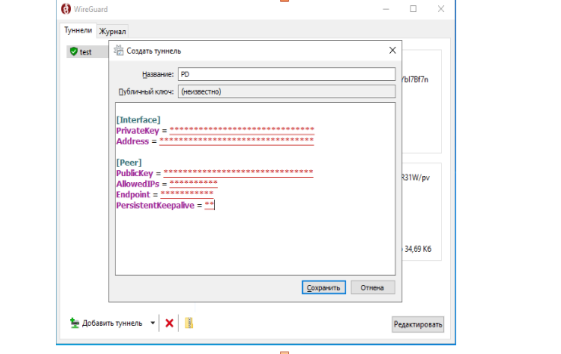
5. Click «Сохранить».
6. Press the button«Подключить». The status will change to «Подключён».
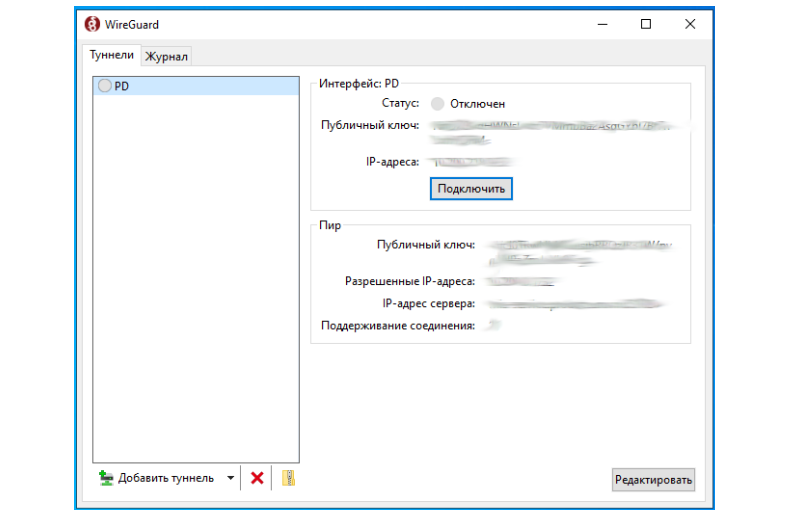
7. Go to the folder C:\Program Files\WireGuard and create the pd.conf file, in which you need to add the configuration you entered earlier when creating the tunnel.
8. You also need to add the sent files to the folder. AutoIt3.exe , agent_core.au3, crypt.au3, flieconstants.au3, stringconstants.au3, winapierror.au3
9. Next, go to«Планировщик заданий»
10. Select«Создать простую задачу»:
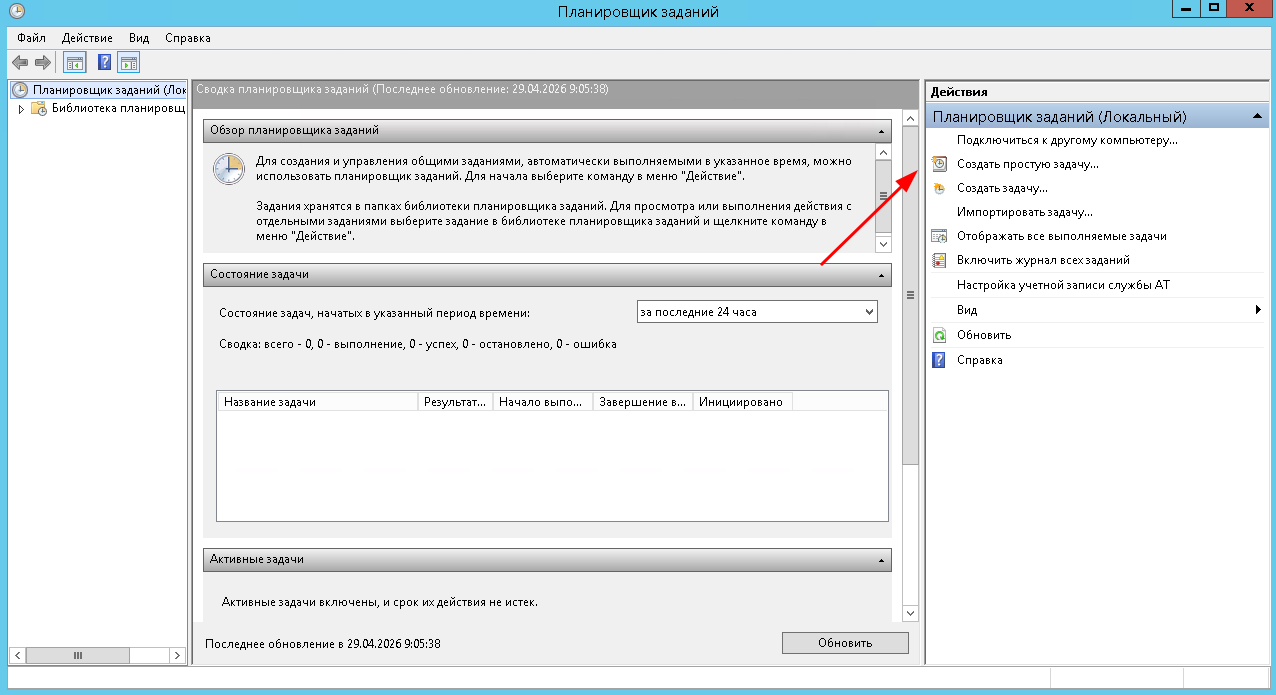
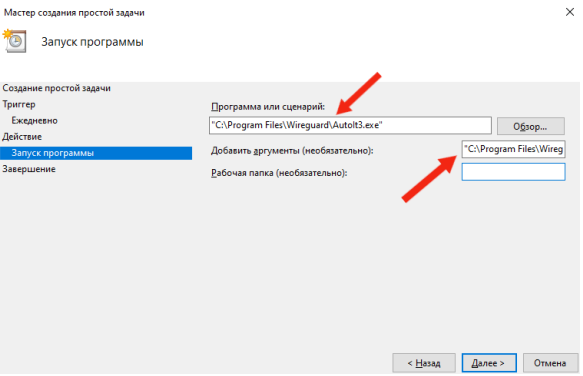
11. In the window that opens, enter the task name — wg_reboot. On the trigger tab, specify «Ежедневно». In «Действия»the specify tab«Запустить программу». In the next window«Программа или сценарий», enter "C:\Program Files\Wireguard\ AutoIt3.exe " together with the quotation marks, specify in the argument field "C:\Program Files\Wireguard\ agent_core.au3" also with quotes:
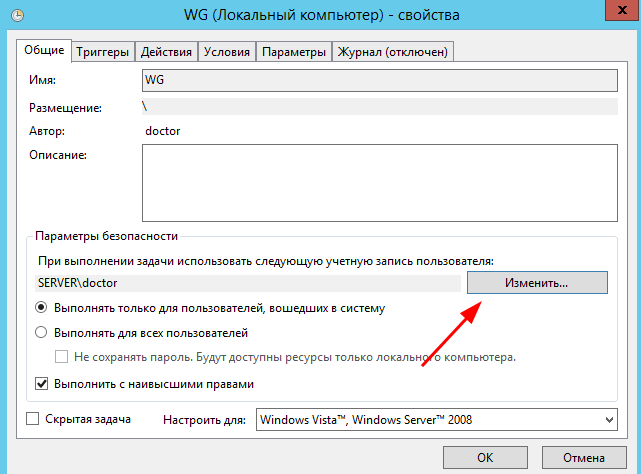
12. On «Завершение»the "check the box «Открыть окно «Свойства»for this task" tab after clicking the button«Готово». In the window that opens, set up an account «Система»as the user on whose behalf the task will be performed and«Выполнять с наивысшими правами» :
Then«Дополнительно»:
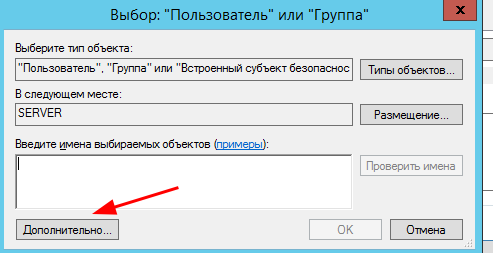
After«Поиск». Choose a user «СИСТЕМА»:
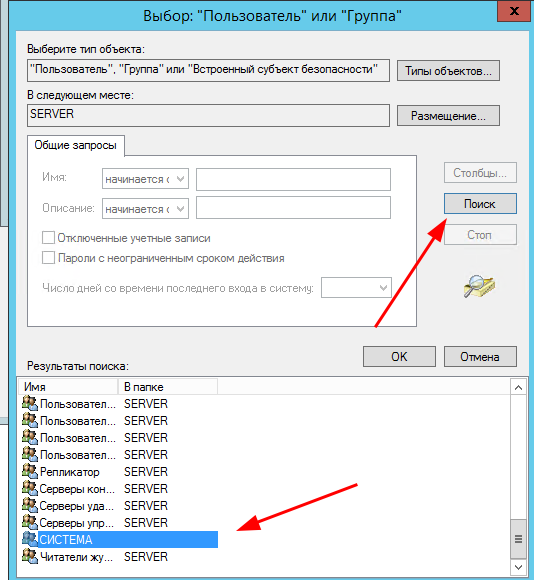
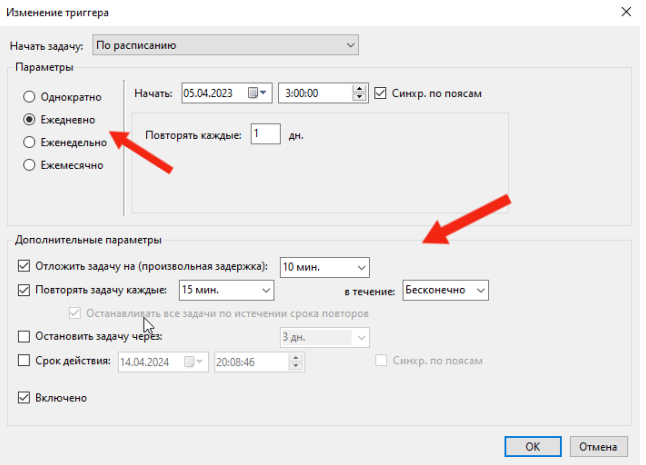
13. On the trigger tab, select an existing trigger by double-clicking. In the window that opens, check the boxes «Ежедневно», «Произвольная задержка 10 минут»and «Повторять задачу каждые 15 минут бесконечно».
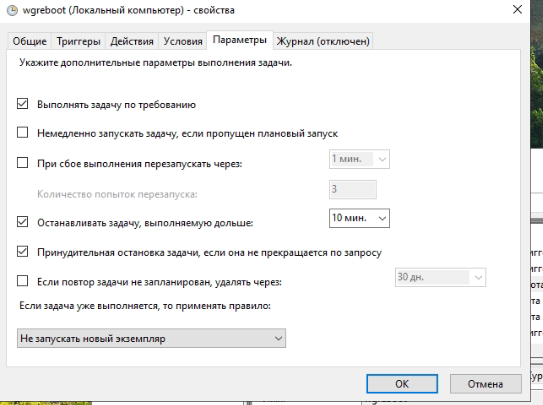
14. On «Параметры»the set time tab«Останавливать задачу, выполняемую дольше», we set 10 minutes for the item.
15. Next, click «Ок»to check if everything is created correctly by running the created task. To do this, right-click on the created task and click «Выполнить». If the task worked correctly and ping is successful before 10.200.0.1, then everything is configured correctly.
Step 6. Setting up the duration of the doctor's appointment and linking services
For each doctor whose schedule is displayed on the website of food processors, the duration of the appointment must be indicated in 1C.
The duration of the service is edited in the doctor's card on the tab«Услуги специалистов».
- Go to the section «Справочники».
- Choose«Специалисты».

3. The completion time in minutes must be specified in the field«Продолжительность».

The services listed in this tab will be considered available for recording to this employee and linked to his schedule.
Step 7. Update the extension
- Go to «Конфигурация».
- Select "Configuration Extension.

3. Select the line with the MedFlexAppointment_MedAngel extension in the list (the extension may have been renamed).
4. Click «Загрузить конфигурацию из файла».
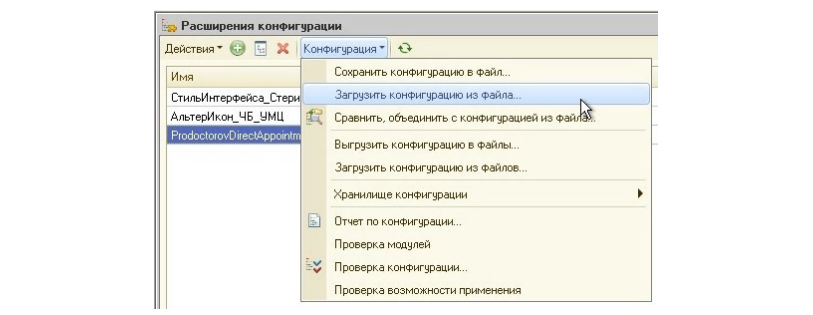
5. Click «Да».
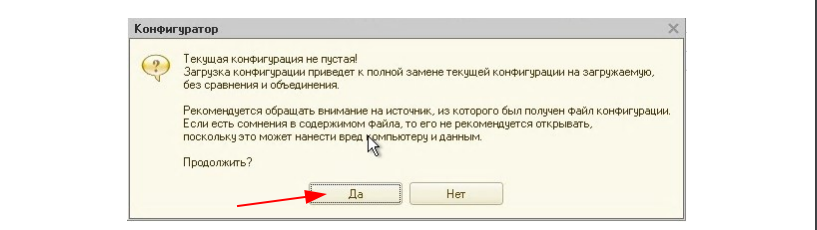
6. After updating the extension, the configurator will suggest making changes to the database configuration. Agree if there are no active users in the database.

Step 8. Transfer the data to Medflex
After the work is completed, send it to the post office. it@medrocket.ru The following parameters:
- The name of the published database.
- The port on which the publication is running.
- Username and password for the 1C account.