

Content:
- Introduction
- Video instruction on the coordination of services
- Creation of a new service approval document
- Sending the approval order to the insurance company
- Receiving and registering a response from the insurance company
Introduction 
This instruction defines the procedure for working with the LMS Order document in the 1C: Bit UMTS configuration.
This document is a key electronic tool for approving medical services under a VHI agreement between a clinic and an insurance company through the Medflex API.
Its purpose is to centrally process the application, send it to the insurer for approval and process the responses received (permission, refusal, request for clarification).
Following these instructions ensures that the order is executed correctly, that the approval time is shortened, and that the interaction with the insurance company is transparent.
Video instruction on the coordination of services
Download a video tutorial with a visual process of creating an order and obtaining approval results - Video tutorial on the process of approving LCA services in 1C BIT UMTS
Creation of a new service approval document
1) Initiation of the LCA Order document
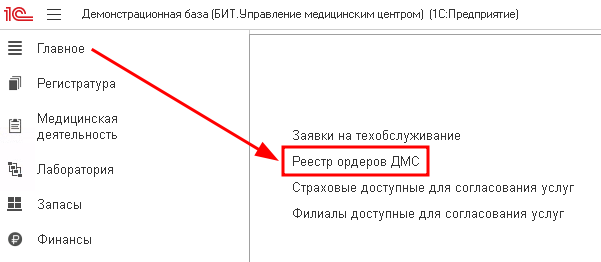
- To create a new order, you can go to the list of documents from the Main subsystem.
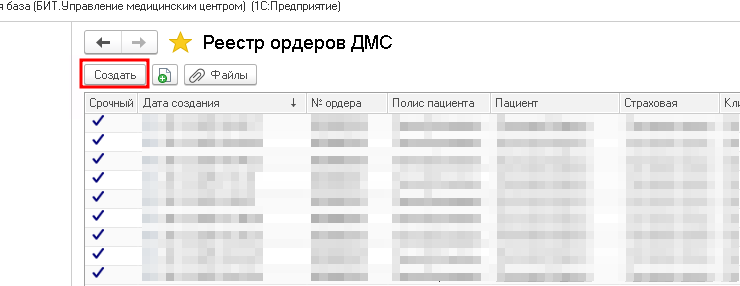
- In the list of orders, clicking the Create button in the upper-left corner opens the form for creating a new order.
2) Filling out the order header
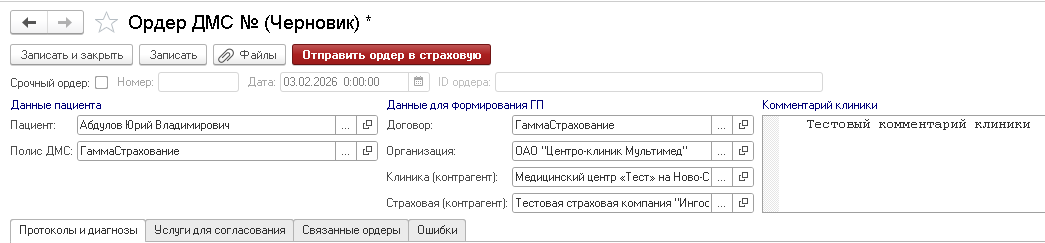
- If the order needs to be assigned an urgency attribute, the Urgent Order flag is marked.
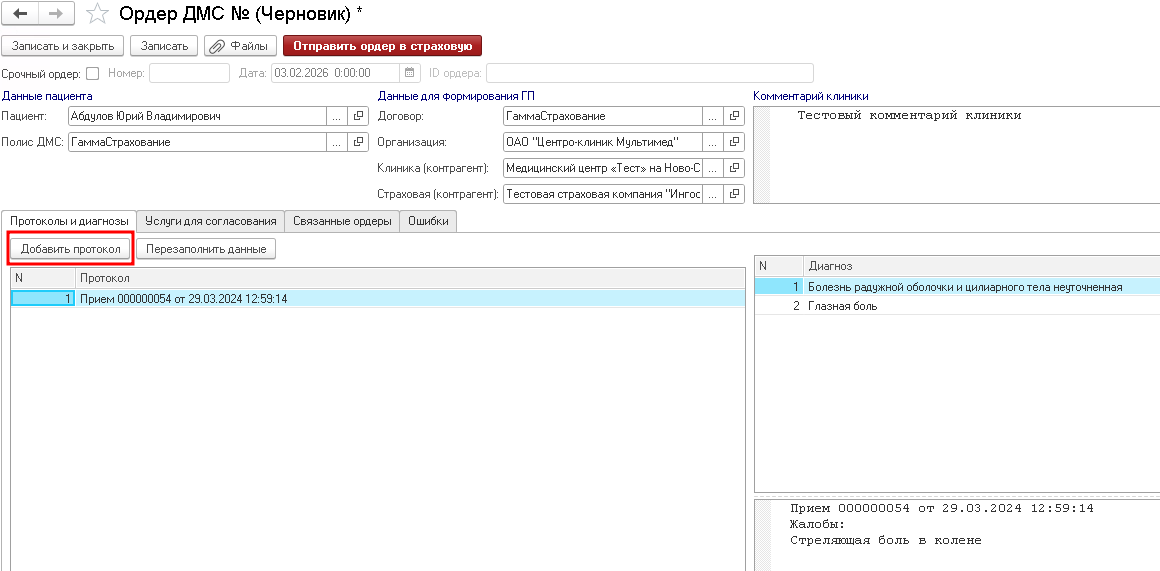
- The Patient and his VMI Policy are indicated.
- If there is a contract between the insurance company and the branch, then you can specify it in the Contract field.
- You can select an organization in the Organization field.
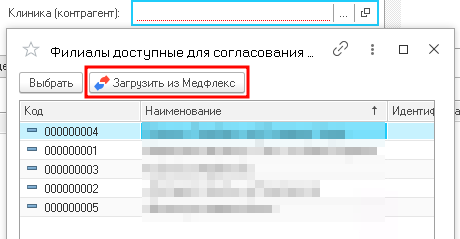
- Choosing a clinic is a clinic (counterparty) that is available to coordinate services. If the list is empty or there is no clinic you need, download the data from the Medflex API by clicking Download from Medflex.
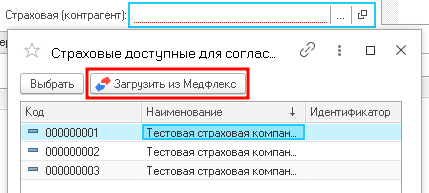
- Choosing an insurance company is an insurance company (counterparty) from the directory. If the list is empty or the company you need is not there, download the data from the Medflex API by clicking Download from Medflex.
- To leave a message for the insurance company, write it in the Clinic's Comment field in the header of the order.
3) Adding protocols and services to the order
- You can add existing patient protocols (the Admission document) to the tabular part of the order by clicking Add Protocol. In this case, data on diagnoses, complaints, and assigned services from the selected documents will be automatically filled in.
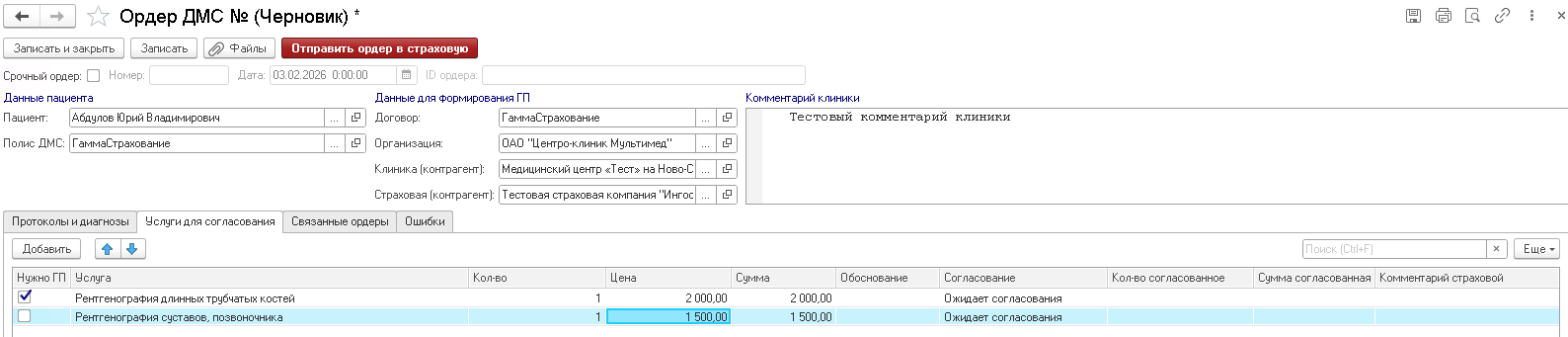
- On the Services tab for approval, add new services or delete previously added ones. For each line, you must specify whether a letter of guarantee is required by setting the appropriate flag in the GP column. If necessary, you can also fill in the fields:
- Qty is the number of services to be approved.
- Price is the cost of the service.
- The justification is a text with an explanation.
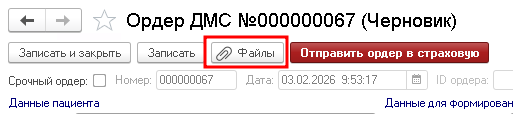
- To send files with an order (if required), click on the Files button. In the list that opens, click the Add button.
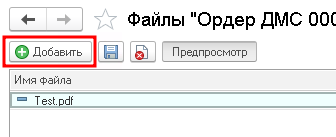
You can attach files of the following formats to the order: *.jpg, *.pdf, *.doc, *.docx, *.xls, *.xlsx, *.json
4) Saving the draft order
- The document is saved in the "Draft" status for subsequent editing by clicking Record and Close or Record.
Sending the approval order to the insurance company
1) Required parameters for creating an order
- To successfully create an order through the API and submit it to the insurance company for approval, you must fill in the required parameters:
- The patient is filled in in the header of the order.
- VMI policy - is filled out in the header of the order.
- Branch - is filled in in the header of the order.
- Insurance company - to be filled in the header of the order.
- Protocols (Reception document) - Protocols and diagnoses are added to the tabular part. For more information, see 2.3. Adding protocols and services.
- Services - are added to the tabular part of the Service for approval. For more information, see 2.3. Adding protocols and services.
2) Initiation of sending
- To send a document for approval to the insurance company, click on the Send an order to the insurance company button.
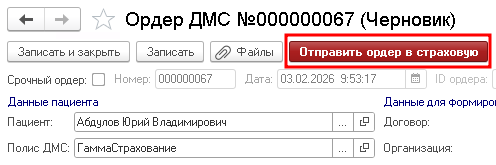
- Upon successful submission, the system will send a message to the user, fill in the Order ID field in the header of the document and change the status of the document from Draft to Awaiting approval.


3) Rejection of the order by the clinic
- If for any reason the VMI order needs to be cancelled, this can be done by clicking on the Reject Order button. In this case, the notice of rejection is sent to the insurance company. If a request is successfully sent via the API, the system assigns the status Rejected by the clinic to it.

Receiving and registering a response from the insurance company
1) Automatic response reception
- The system automatically receives and processes the incoming response from the insurance company.
- A message from the insurance company is added to the Insurance Comment field.
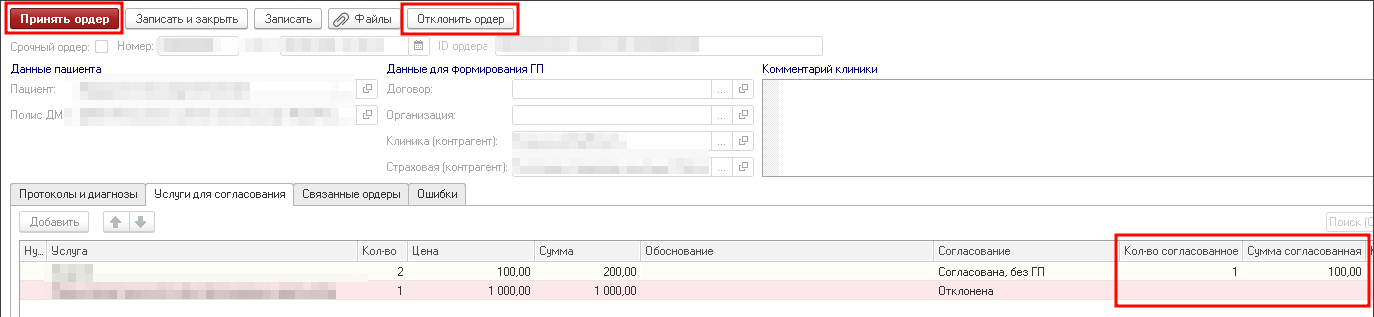
- Columns are filled in on the Matching Services tab:
- Agreed quantity is the number of services agreed upon by the insurance company.
- The agreed amount is the total cost of the service in the line agreed by the insurance company.
- Insurance comment - in this field, the insurance company can enter a comment related to a specific service in this line.
- The document is being updated, its status is changing, and the following is awaiting approval:
- Request for additional information. The insurance company expects the clinic to correct the data and resend the order.
- Partially or completely agreed, there is no GP. The insurance company has partially or fully agreed on the services, no letter of guarantee is required.
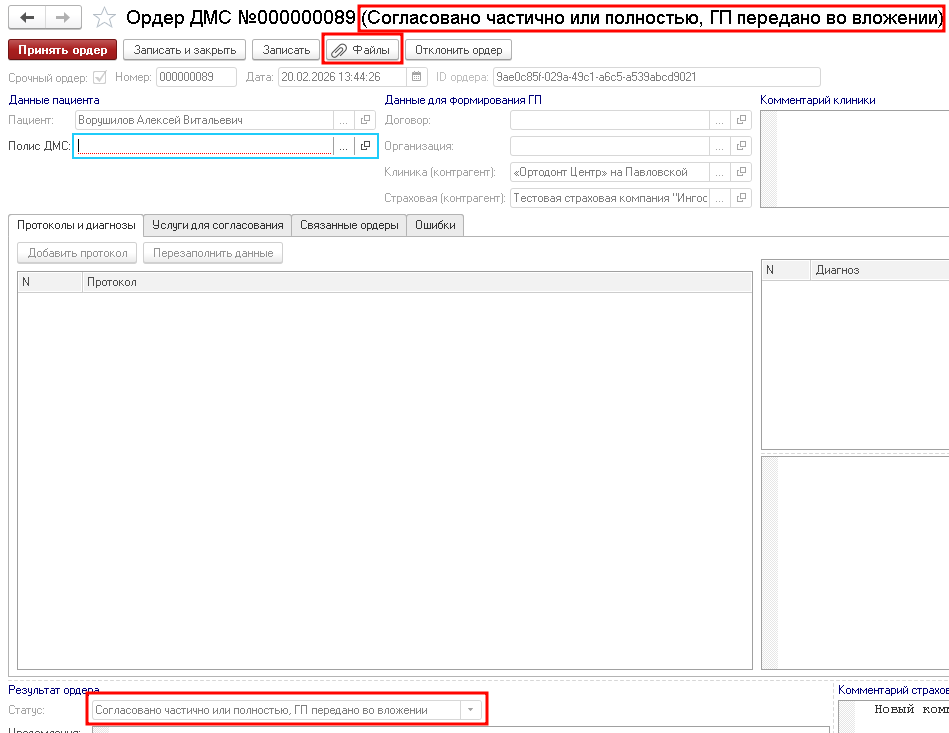
- Partially or completely agreed upon, the GP was transferred by attachment. The insurance company has partially or fully agreed on the services and is sending a letter of guarantee in *.pdf format.
- Rejected by the UK. The insurance company has not agreed on the services.
- Upon receiving an order from the insurance company, the system automatically creates the missing data in the database (if it could not find and compare them). Information about the created objects is displayed in the "Notification" field at the bottom of the document.

- Comparison of the insurance company's services with the nomenclature in the 1C database. If, upon receiving an order from the insurance company, the system does not find the transferred services by name in the 1C database, it notifies the user about this in the fieldNotifications. Next, the operator must manually compare the nomenclature from the database with the services received from the insurance company. This is done on the Services tab for matching in the Services column.
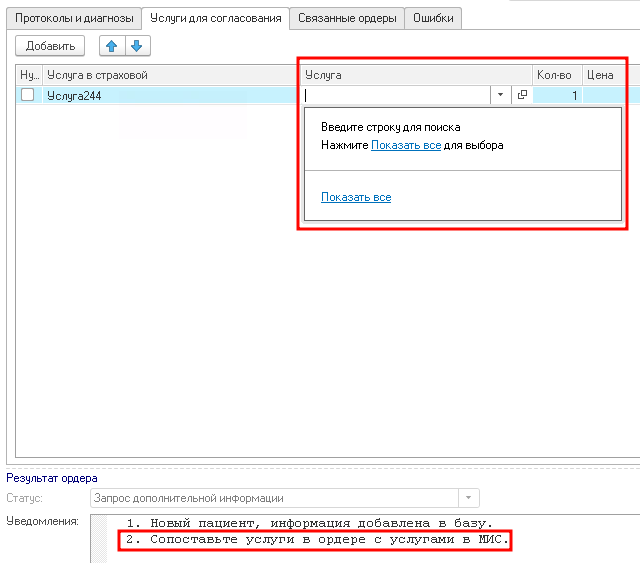
Important: matching services is a mandatory operation.
2) The clinic's response to the insurance company's message
- If the clinic receives an order with the status Request for additional information, it means that the insurance company offers to make the necessary clarifications in the document and send it for re-approval.

- If the insurance company has partially or fully agreed on the services, and the clinic is satisfied with the conditions, the user can accept the order by clicking the Accept Order button. After that, the document will be carried out, and the services indicated in the tabular part of the Services for approval in the agreed amount will be available to the patient through the Service Provision document.
- If the clinic does not agree with the conditions reflected in the order after the insurance company's response, the user can reject the document by clicking Reject the order. In this case, the document will become unavailable for editing. Based on it, you can re-issue an order by clicking Generate a Repeat Order, or create a new document, if necessary.
3) Creation of an order based on a document Reception
- To fill out an order more accurately and quickly, it can be created based on the Receipt document. To do this, click on the Create Based button located in the header of the Reception document. This will allow you to add the document itself to the Protocols field, automatically fill out the organization, as well as transfer services and additional parameters (complaints, medical history, medications, and admission data).

4) Acceptance or rejection of the order
- In order to control the agreed and rendered LCA services, the order must be executed (accepted). Pressing a buttonTo accept means that the clinic agrees with the number of services agreed with the insurance company in the tabular part of the Service for approval. After that, the services in the agreed volume are assigned to the patient and monitored during the actual provision (Service Provision document).
- If the clinic does not agree with the conditions specified in the order, it can reject the document by clicking Reject the order. In this case, the services are not assigned to the patient, and the notification of rejection is sent to the insurance company. Upon successful submission of the document via the API, the system assigns the status Rejected by the clinic to it.
5) Receiving a letter of guarantee in PDF format
- Upon receipt of an order from the insurance company with the status Partially or fully Agreed, the SOE is provided with a letter of guarantee in PDF format attached, which is automatically saved by the system and assigned to the order. You can view or download the file by clicking the Files button located in the header of the document. In the list that opens, the sent file will have a comment on the insurance company's file.