


Item instance requirements in an industrial environment 
Signature type: enhanced qualified EP only.
Format: Signatures must be in CAdES (CMS Advanced Electronic Signatures).
Files: Each signature (of an employee or organization) must be in a separate file (detached signature).
In accordance with Federal Law No. 63-FZ of 04/06/2011«Об электронной подписи»
Item instance requirements in the test environment
Signature type: It is allowed to use unqualified item instances for testing/debugging.
In accordance with the order of the Ministry of Finance No. 667/FSO No. 233
Changes in connection with the implementation of the Ministry of Emergency Situations
To ensure that the documents are not «сломались»due to an expired certificate of the organization:
1. Make sure that the employee's EP is issued in the name of your medical organization.
2. Check with the Federal Tax Service that the organization's data matches the Unified State Register of Legal Entities.
3. Make sure that the personal files of the employees in the FRMR are up to date (they work for you).
Installing an item instance
If the item instance was issued on a Rutoken
You may need to install the Rutoken driver kit.
The installation instructions and installation files are on the official website.
How to Install CryptoPro CSP
To install CryptoPro CSP on Windows:
1. Buy a license.
2. Run the installer.
3. Press the button«Установить».
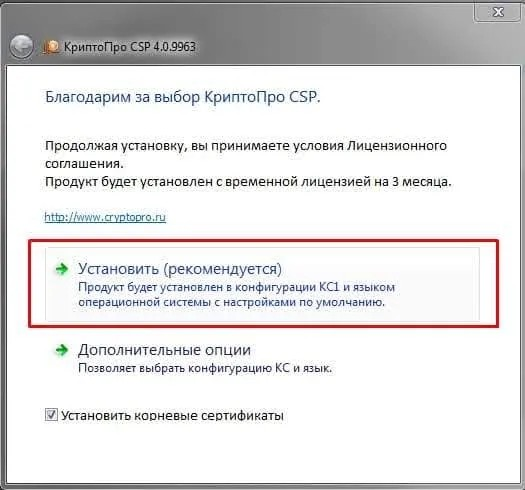
Installing the CEP certificate via«КриптоПро CSP»
There «КриптоПро CSP»are two ways to install a certificate: via the button
«Просмотреть сертификаты в контейнере...»or«Установить личный сертификат».
1. Launch«КриптоПро CSP»
2. Click the tab«Сервис»
Further:
Method 1. Through the container
1. Click«Просмотреть сертификаты в контейнере...»

2. Press the button«Обзор»
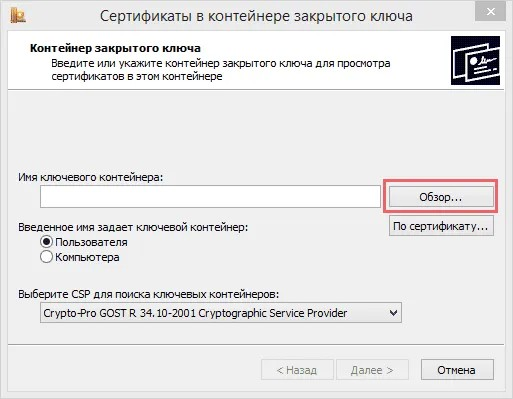
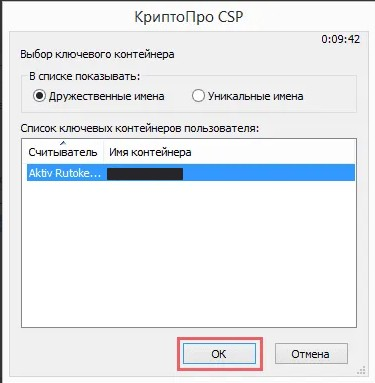
3. Select the desired container and click OK.
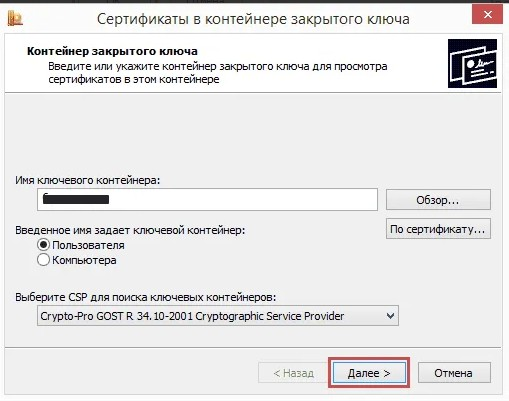
4. Press the button«Далее».
5. The button «Установить»may or may not be displayed.
If «Установить»there is a button:
a. Click«Установить»
b. Click«Готово»
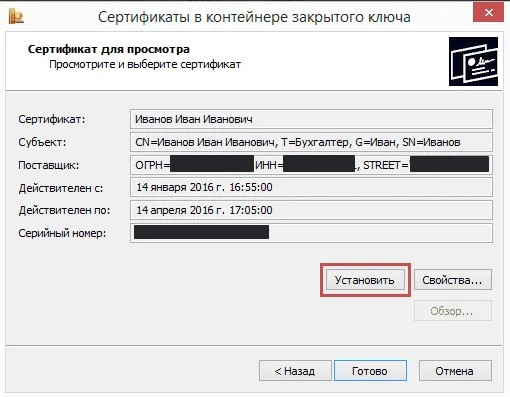
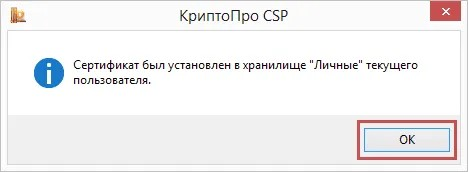
B. Click «Да».
d . Click «ОК».
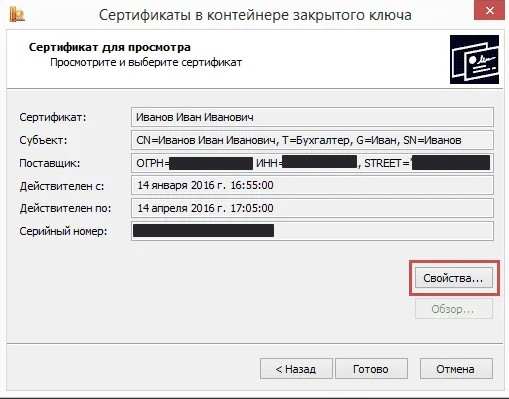
If «Установить»there is no button:
but. In the window«Сертификат для просмотра», click «Свойства».
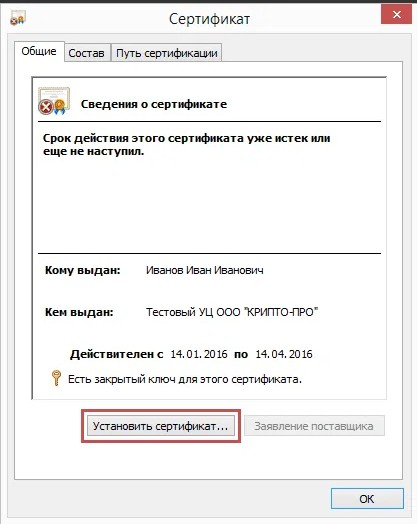
b. Press the button«Установить сертификат».
c. Press the button«ОК».
Method 2. Through a file
1. Click«Установить личный сертификат»
2. Specify the certificate file
3. Click «Открыть».
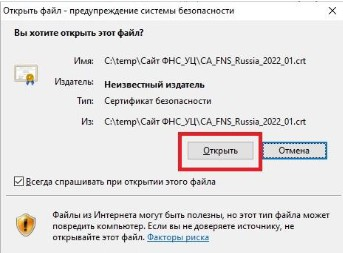
4. Click «Установить сертификат».
Additionally, you may need root certificates from the Ministry of Finance of Russia and the Certification Center of the Federal Tax Service of Russia.
For both methods, continue:
1. Select the storage «Локальный компьютер»and click «Далее».
2. Select the correct storage:
For the certificate of the Ministry of Finance of the Russian Federation -> «Доверенные корневые центры сертификации».
For the certificate of the Federal Tax Service of the Russian Federation -> «Промежуточные центры сертификации».
3. Complete the installation.