


Setting up an account for services
In order for patients to see current services and slots, the IIA transmits information about there «обращениях в расписании»— this is a reference book that describes what types of appointments the clinic is ready to show on an external resource, at what prices and with which doctors.
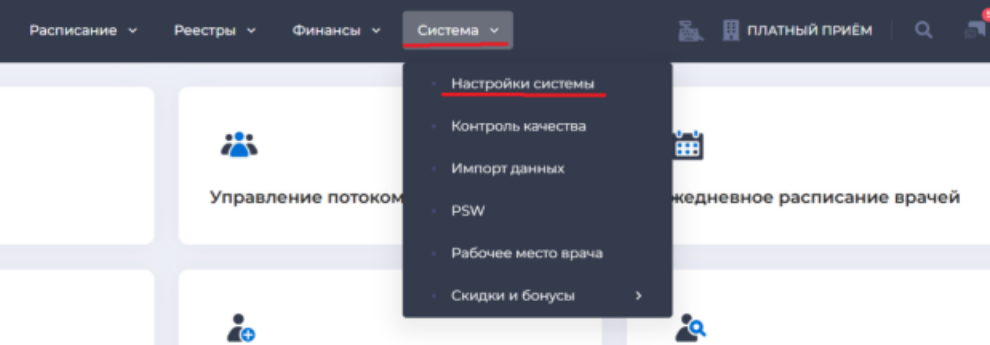
1 In order to set up the directory of requests, select the System - System Settings section in the upper navigation menu.:
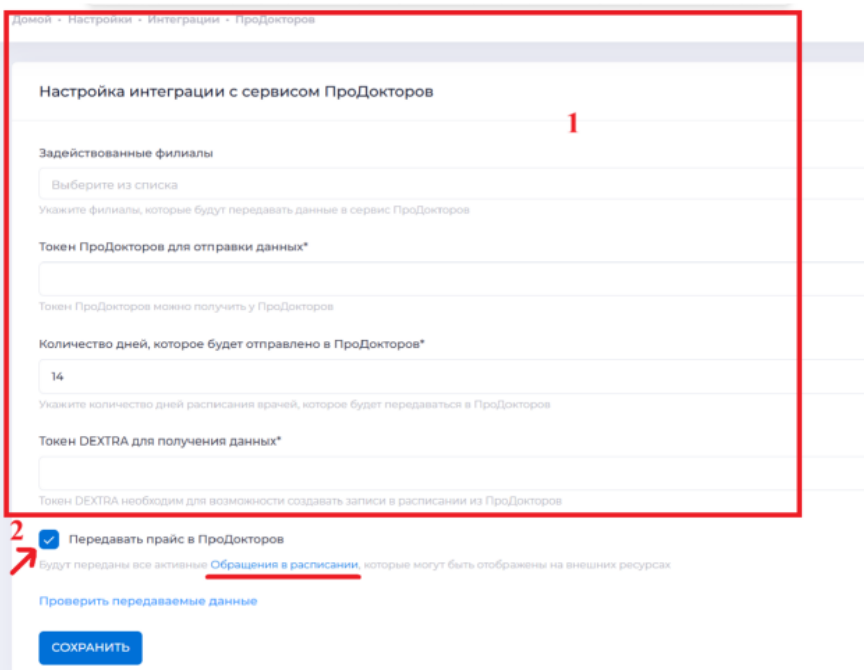
"2" In the left navigation menu, select the "Integrations" section (1) Next, open the "Producers" (2):

3 of the "Service Integration SettingsProDoctorov" (1) is filled out by the Dextra Technical Support.
The "Transfer price toProDoctorov" (2) block is set up by a clinic employee. "Before checking", you need to set up the requests that will be sent to the website of "Prodoktors". To do this, go to the directory of requests using the link "Scheduled requests".:
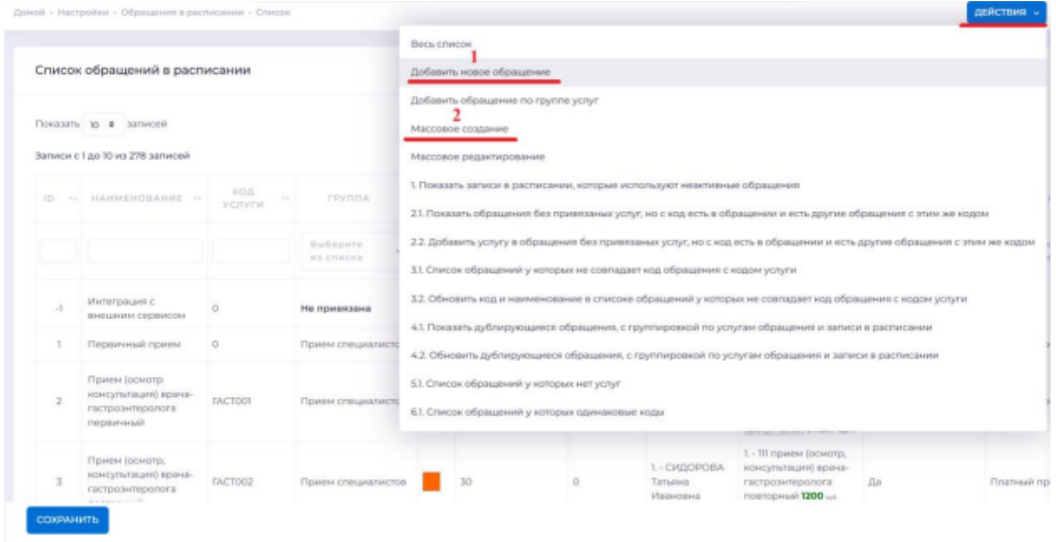
Options for creating requests
To create a request, click on the "Actions" button in the upper-right corner and select one of the ways to create requests from the list below. Requests can be created one at a time (1)
or en masse (2):
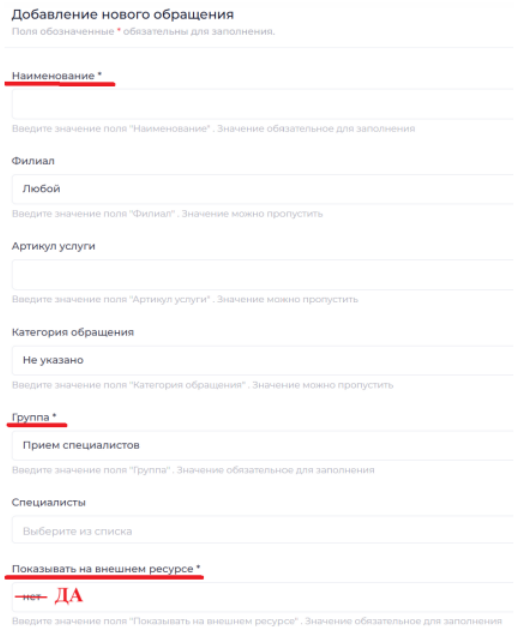
Creating requests one at a time
""To add one appeal manually, click on the "Actions" button in the upper-right corner and select "Add new appeal" in the list below.

After filling in all the fields, click «Создать».
The request will appear in the directory «Обращения в расписании»and will be sent to in the near futureProDoctorov. It will also be available to the reception staff when making an appointment via «Ежедневное расписание врачей». If there are several services within the requestProDoctorov, their total cost will be lost. If you need a different price, edit the cost of services in the price list, or specify only one service in the request.
Mass appeal creation
If the clinic has a lot of services, it takes a long time to create requests one at a time. Use mass creation -the system will generate requests for each service of the selected department or department and group.
Click "Actions" in the upper-right corner and select "Mass Creation" from the list below to proceed to mass creation.
1) Select department (1) and/or group (2). If no group is selected, all services of the selected department will be added to the list.
2) Set the "General settings" for all requests. There are common fields at the top of the form. The value specified in the general field applies to all checked requests. Common ones include:
1 Branch is for all created requests.
Group 2 of requests — which group they belong to.
""Specialist", "Research", and "Surgery" are the 3rd categories.
4 Duration — the duration of the reception in minutes.
5 Color — the color in the schedule.
6 Display on an external resource — «Да»- will be displayed on ProDoctorov,«Нет» - will be displayed only in the MIS.
7 Specialists are doctors who provide the service.
3) Adjust individual settings if necessary. You can individually change any parameter for each service in the list. To change a field for a specific service, uncheck the corresponding column and edit the value.
4) Eliminate unnecessary services if necessary. To exclude a service from the list of created requests, click on the cross in its row. To return it back, click on the check mark.
5) Check the service requests that have already been created. The column «Количество обращений»shows how many requests have already been created for this service.
Click on the number to see their list. If the service is already configured, the new request may duplicate the existing one.
6) After making all the changes, click «Сохранить». One request with the specified settings will be created for each marked service.
Note
A mass creation generates exactly one request for each marked service. If you need several requests for one service (for example, for different branches), create them in the second pass or use mass editing.

How to change an address
To make changes to the treatment, for example, to remove or add a doctor, change the duration of the appointment, or disable the display on an external resource, click the Edit button to the right of the desired position.
How to deactivate a request
If the request is no longer relevant, then deactivate the required position by clicking on the Activate/Deactivate switch.