


Create an access key (token) in DIKIDI and send it to the Medflex developers by mail it@medrocket.ru . In the letter, specify the INN and the name of the clinic.
How to create an access key 
Step 1. Create the activation key
1. Log in to the web version of your DIKIDI Business account.
2. Go to the section «Настройки».
3. Select from the menu on the left«Интеграция».
4. Go to «Доступ к API»and click «Добавить доступ».
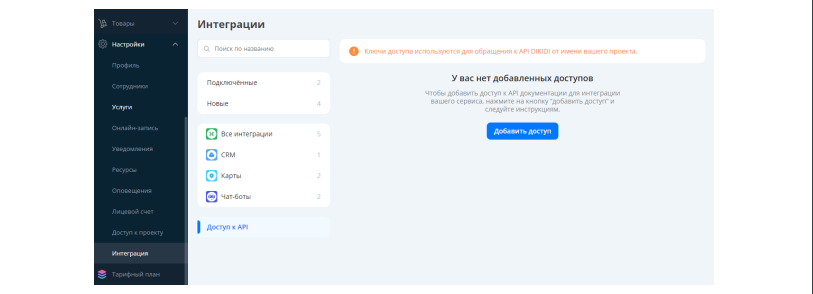
5. In the window that opens, specify the access name and access type.
The name can be anything.
The access type is administrator.
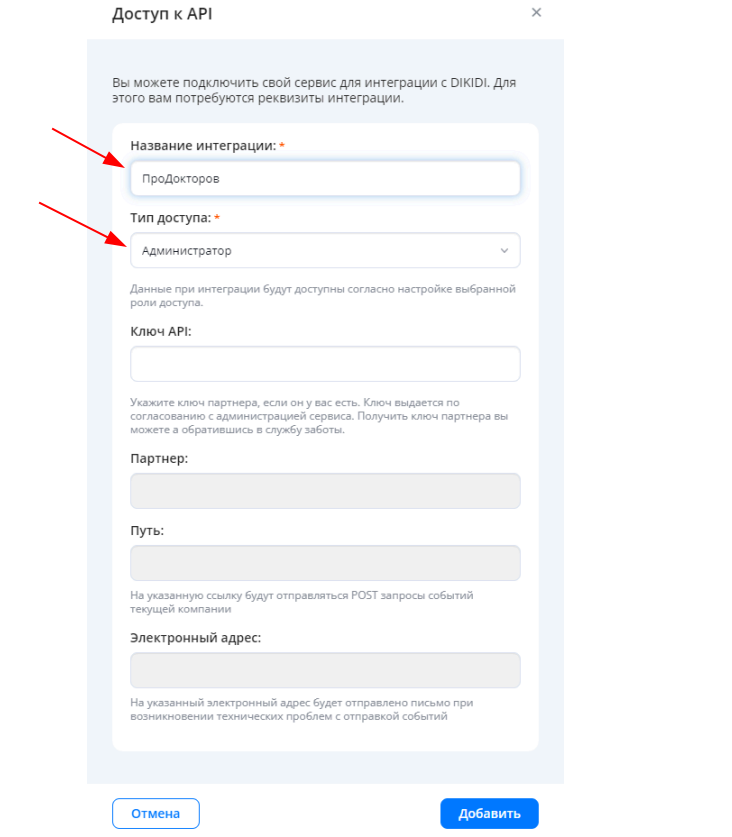
6. Click «Добавить».
7. The generated access key (token) will appear in the field«Доступ к API».
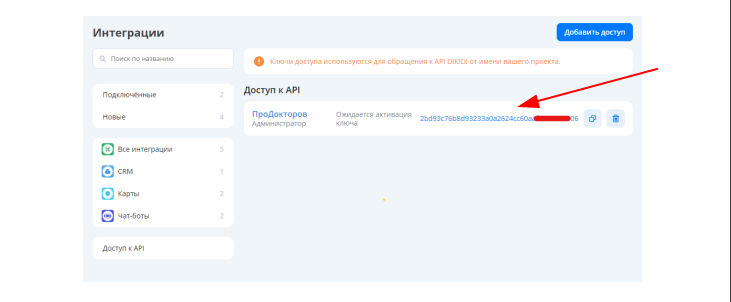
Step 2. Setting up Key Access
1. Click on the name of the key.
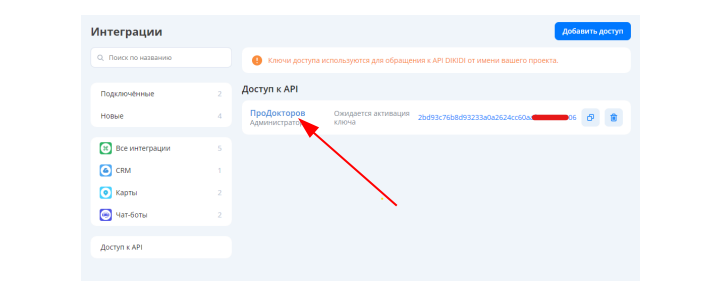
2. For the integration to work correctly, set the following settings:
- In the field«Клиент», select «Всех сотрудников».
- Check all the boxes.
- For «Показывать телефоны клиентов»select «Всегда».
- For «Добавлять и редактировать записи»select «Всем сотрудникам».
- For «Отменять записи»select «Всем сотрудникам».
- For «Занимать время»select «Всем сотрудникам».
- For «Редактировать график работы»select «Только свой».
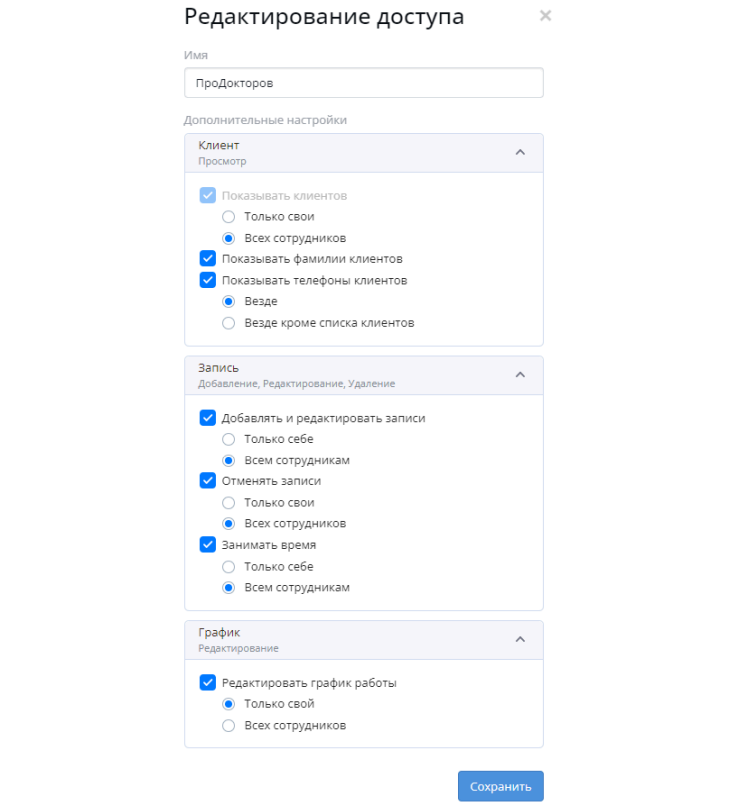
3. Click «Сохранить».
How to disable integration
Suspend data exchange
In the key access settings, set the following settings:
- In the field«Клиент», select «Только свои».
- Uncheck all the boxes.
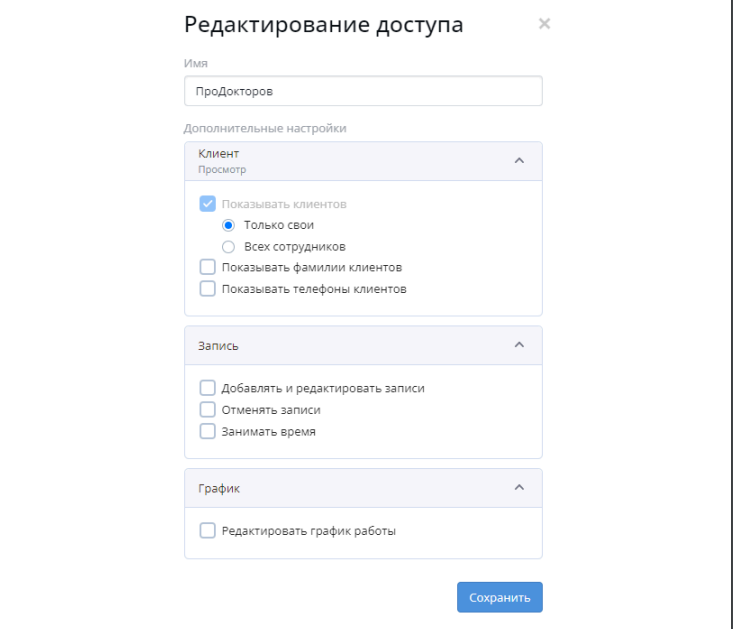
Integration will not be interrupted, but records cannot be created.
To restore the operation, return the settings (Step 2).
Disable it permanently
Delete the key. Click the urn icon next to the corresponding key.
To restore the work, you will need to perform all the settings again.